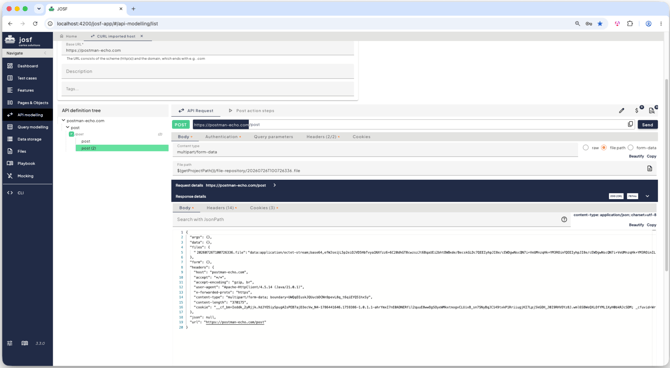
Sending a File via API Request
When working in the API Modelling editor in JOSF, you can configure an API request to upload or send a file. Follow the steps below to set this up correctly.
Step-by-Step Guide
- Navigate to your API Model
Open the API Modelling section in JOSF and select the specific API model you want to work on. - Select or create a POST request
Open an existing POST request from your model, or create a new one.Note: Sending files requires a POST, PUT, or PATCH method.
- Configure the Content-Type
In the request settings, set the content type tomultipart/form-data. This format is strictly required for transmitting files over an API.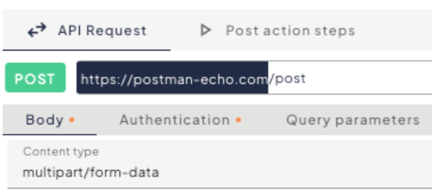
- Set the input option to File Path
Locate the body or parameter settings for your request and change the input option to File path.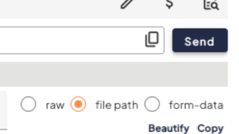
- Attach your file
You can provide the file to the request in two ways:- Click the Select file button to browse and select a file directly from your local system.

- Manually type or paste the exact absolute location path of the file into the input field.

- Click the Select file button to browse and select a file directly from your local system.
- Add optional configurations (e.g., Authentication)
If your endpoint requires additional security or settings, such as an Authorization header, tokens, or specific query parameters, configure them at this stage. - Send and verify
Click the Send button to execute the request. Check the response panel to verify that the file was successfully transmitted and that the API returns the expected successful status code (e.g.,200 OKor201 Created).
Result