
Below, you will find exactly how to generate these tokens and how to retrieve the required secret key.
Create TOTP token
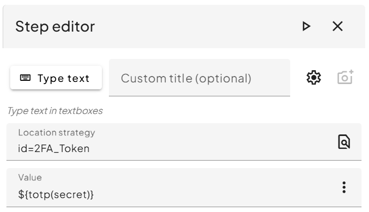
${totp(secret)}
Generate a 6-digit Time-based One Time Password (TOTP) which can be used to sign into a application with 2FA.
How to retrieve a secret?
When enabling 2FA, you will receive a QR code that must be stored in your authenticator app, as it contains the secret key. By scanning the QR code with a QR-code scanner app/Google lens search, the secret is most of the time shown on your screen. If 2FA is already activated, some authenticator apps may allow you to retrieve the secret key, though this is often restricted due to security precautions.
An example for a Microsoft account:
- Go to My Sign-Ins
- Click on the Add sign-in method button
- Select Authenticator app and click Add
- Click on the I want to use a different authenticator app link
- Click on the Next button
- Click on "Can't scan image?" link
- Copy Secret key !!keep it safe as you will need it later!!
- Use your authenticator app to scan the QR code
- Click on Next button
Use: ${totp(secret)} where 'secret' is your key saved in step 7. Take this 6 digit code from JOSF and follow step 10.
10. Enter the code from your authenticator app (JOSF!) and click on Next